Artificial Intelligence
Best Claude Connectors To Automate Your Workflows & Daily Tasks
Share
TL;DR
-
What connectors actually do: let Claude read, write, and trigger actions inside tools like Gmail, Slack, Drive, Notion, Asana, HubSpot, GitLab, and Calendar.
-
Why it works: it’s powered by MCP (Model Context Protocol), so integrations behave like a standard port for AI tools, not one-off hacks.
-
Best starter stack: one daily hub (Gmail or Slack) + one knowledge source (Drive or Notion) + one action layer (Asana or Zapier).
-
Power move: Zapier can chain a single Claude prompt into a multi-app workflow across thousands of tools.
- Setup rule: don’t connect everything. Start with the first app you open every morning, build the habit, then stack connectors for compounding gains.
-(1)-177.jpg.aspx "TechDogs-\"Best Claude Connectors To Automate Your Workflows & Daily Tasks\"")
Introduction
If you played GTA: Vice City, you remember what cheat codes really did. They were shortcuts that removed friction. Need a weapon loadout instantly? Done. Want a car to appear out of nowhere? Done. You stopped fighting the controls and started doing what you actually wanted to do.
That is basically the modern workday problem. Notion has the brief, Gmail has the client thread, Slack has the decision, Asana has the task, and Google Drive has the file you are supposed to update.
These are not tough tools to work with, but to work together, you need to keep switching tabs. Copy details. Explain the same things to all the tools.
Claude helps, but by default, it is stuck in a text box. It cannot see your inbox, your docs, your project board, or your CRM unless you paste everything manually. So, you still end up acting like the messenger between your own apps.
Claude Connectors change that. They plug Claude into the tools you already use so it can pull the right context, draft the output inside the source app, and trigger real actions without the tab-hopping.
In this guide, we will break down how connectors work, which ones are worth enabling first, and what workflows they unlock when you stack them the right way.
What Are Claude Connectors?
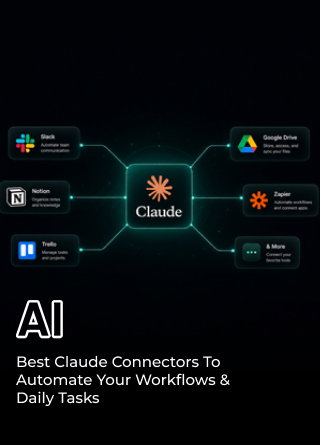
Claude Connectors are integrations that let Claude work directly with the tools you already use, like Gmail, Slack, Google Drive, Notion, Asana, and more. Instead of treating those apps like separate islands, connectors let Claude pull the right context from them, generate outputs where they belong, and help you take action from a single conversation.
Under the hood, connectors run on MCP (Model Context Protocol), an open standard Anthropic introduced in November 2024. MCP works like a universal interface for AI, so Claude can connect to different software through a consistent, secure method rather than custom one-off integrations.
In practical terms, connectors turn “ask Claude” into “do it in the tool.” They are available across Claude.ai, Claude Desktop, Claude Code, and mobile, and they do not require coding to set up. Depending on the integration and your plan, you can keep access read-only, or allow Claude to draft, create, and trigger actions with your approval.
How Do Claude Connectors Work?
-
Secure Access: When you connect an app, Claude authenticates through OAuth, a secure authorization standard.
-
Data Discovery: It can then discover what that app exposes, whether it is Gmail threads, Asana task lists, or a Google Drive document.
-
User Control: Every action Claude takes requires your approval by default. Permissions are granular: you can allow Claude to read Drive files while blocking it from editing them. These controls sit inside the Connectors tab in Claude Settings. Custom connectors are also available for teams needing to bridge internal tools via MCP.
What Can Claude Do With A Connector?
Once active, a connector enables three types of actions:
-
Read and retrieve: Search emails, pull task lists, scan documents, and locate calendar slots.
-
Write and create: Draft messages, create tasks, build new pages, and save files back to the source app.
-
Trigger and automate: Fire multi-step workflows, send data across platforms, and execute sequences from one prompt.
Claude also surfaces the right connector on its own. Ask something that requires your Drive, and Claude calls the Drive connector without you having to name it.
With the core mechanics covered, here are the top integrations worth activating today.
The Best Claude Connectors To Plug In Right Now
There are mainly three types of connectors that can be plugged into Claude. One, for communication. Two, for files and storage management, and third, for automation.
Gmail
Gmail is where most work quietly begins and where it quietly dies. The Gmail connector makes Claude useful at the exact point you normally waste time: digging through old threads, reconstructing context, and trying to reply without missing something you promised three weeks ago. With it enabled, Claude can pull the relevant emails, summarize what has happened, and draft a reply that actually reflects the thread history, not just your last message.

The real win is speed-to-clarity. Instead of searching manually, you can ask Claude to find every email with a specific client over the last six months, extract action items, and tell you where things stand. If you are using Google Workspace, this usually pairs naturally with Drive and Calendar, so Claude can connect the email context to the files and meetings tied to it. Start by letting Claude read and summarize before you allow it to draft or send anything.
Slack
Slack is the messy public square of modern teams. The Slack connector helps Claude do what Slack is bad at: turning chatter into usable decisions. Instead of scrolling through threads to find the one message that mattered, Claude can search the workspace history, pull the relevant context, and summarize what was decided, what is blocked, and who owns the next step.

It also helps on the output side. If you need to post an update, Claude can draft it with the right tone, preview it, and only post it once you approve. That approval gate matters because Slack is where mistakes go viral inside a company. Keep it scoped to the channels that actually contain signal; otherwise, you will end up summarizing noise.
Google Drive
Drive is where the real work lives, but it is also where time goes to disappear. The Drive connector lets Claude pull the exact document you mean, summarize it, compare versions, and synthesize across multiple Docs without you doing the scavenger hunt yourself. It also supports reading Sheets directly, which means Claude can work from your live numbers instead of whatever CSV you exported last week.

This is the connector that upgrades Claude from a writing assistant to a context-aware collaborator. You can point Claude at a folder of strategy docs and ask it to generate a one-page exec brief, flag contradictions, and identify what is outdated. If you enable write access, Claude can save its outputs back into Drive but do that only after you validate that it is putting the right content in the right place.
Notion
Notion is supposed to be your company’s memory, but most Notion workspaces turn into a junk drawer. The Notion connector helps Claude become your retrieval layer: it can search across pages and databases, pull the relevant notes, and stitch together answers from scattered documentation.

It also makes creation less painful. Claude can turn messy meeting notes into a structured page, generate weekly updates from ongoing project context, and create new pages where your team actually files things. The only risk is sprawl. If you give Claude the ability to create pages everywhere, it will happily do it. Lock it to the spaces where you want systemized output.
Asana
Asana is where plans go when they finally become real. The Asana connector lets Claude convert thinking into execution without you manually recreating the plan as tasks. That is the difference between a good idea and an execution. With the connector, Claude can look at project structure, generate a project preview, create tasks, and help you spot blockers before they become surprises.
.png.aspx?width=479&height=350 "TechDogs-\"An Image Showing Asana Connector\"")
The best use case is when you have a messy launch plan in your head or in a doc, and you need it to be operationalized. Claude can turn that into a task breakdown with owners and due dates, then refine it based on how your team typically works. Start read-only if your Asana setup is inconsistent. Once you have naming conventions and clear projects, task creation becomes genuinely high leverage.
Zapier
Zapier is the connector that turns Claude from assistant into automation trigger. Instead of Claude doing one thing inside one tool, Zapier lets a single message kick off a chain across multiple apps. That is how you go from drafting to doing: update the CRM, send the follow-up, create the task, post the Slack alert, and schedule the event, all from one instruction.

According to industry data from Gartner, 40% of enterprise applications will embed AI agent capabilities by 2026, up from under 5% just a year prior. Zapier itself deployed over 800 Claude-driven agents internally, reporting massive 10x year-over-year task completion growth as a result.
HubSpot
HubSpot is where sales teams lose hours doing admin work they hate. The HubSpot connector flips that: Claude can pull contact and deal context in plain language, summarize activity, and log notes and tasks without you doing the manual CRM cleanup. It also respects user permissions, so reps only see what they are allowed to see, which matters in larger orgs.

Where it really pays off is before and after customer conversations. Before a call, Claude can build a deal brief: last touchpoints, engagement signals, open objections, and next best action. After a call, Claude can turn a rough recap into structured notes and tasks so the CRM stays current without draining your team. Treat write access like a privilege, not a default. Start with retrieval and summarization, then expand to updates once you are confident.
GitLab
GitLab is not just code storage; it is the record of how work actually moves through engineering. The GitLab connector lets Claude follow that trail: repos, merge requests, issues, and CI/CD pipelines. Instead of hopping across tabs to figure out why something failed, you can ask Claude to summarize what changed, where the pipeline broke, and what is blocking the release.

This connector shines when you want faster triage and less status theatre. Claude can scan a failed pipeline, explain the likely cause, and draft the remediation issue for assignment, which is exactly the kind of glue work that slows teams down.
Google Calendar
Calendar is the hidden constraint behind everything. The Calendar connector lets Claude find open time, create and update events, and spot patterns like back-to-back meetings that destroy focus. It is not just scheduling; it is operational control over your week, especially when meetings are constantly shifting.

The practical use case is simple: you tell Claude what you need, it finds time, proposes options, and updates the event after you approve. The caution is also real. Event descriptions can contain untrusted text, and you do not want an automated agent blindly following instructions embedded in an invite. Keep approvals on, especially in sensitive environments, and treat calendar actions like you would treat email sends: review before you confirm.
Selecting the right tools requires strategy rather than connecting everything at once.
How To Choose The Right Claude Connector For Your Workflow?
The fastest way to make connectors feel useless is to connect ten apps on day one. You end up with more surface area, more permission prompts, and no actual habit change. Start with the app you open first every morning, connect only that, and use it for a week until ask Claude becomes muscle memory.
Once that baseline is working, stop choosing connectors one by one and start building a small stack. The setups that actually change your day usually combine three layers: a signal source (where the context lives), an execution surface (where work gets assigned), and an automation bridge (where actions chain across tools).
Pick your stack based on the work you do most:
-
If you are in research, content, or strategy, start with context-heavy sources like Google Drive and Notion, then add one place where outputs land.
-
If you run ops or projects, prioritize action tools like Asana, then add Zapier to push the same decision across multiple systems.
-
If you are in sales, marketing ops, or engineering, anchor on system-of-record connectors like HubSpot or GitLab, then layer in Slack or Gmail, so updates and follow-ups happen where the work actually moves.
The goal is not to have more integrations. The goal is to have fewer handoffs. One connector builds trust. Two connectors build flow. Three connectors start compounding.
Conclusion
Claude Connectors do not just give Claude more features. They change what the tool is. Instead of a smart chat that waits for you to paste context, Claude becomes something closer to a workflow operator that can pull the right information from your tools, draft the output where it belongs, and help move work forward without the tab-switching tax.
The mistake is treating connectors like an app store shopping spree. Real productivity comes from a small, intentional stack. Start with the one tool you touch every morning, use it long enough to build trust, then layer in a second connector that reduces handoffs and a third that turns repeated steps into an automation pattern. That is where the compounding effect shows up.
Pick one connector this week. Not the fanciest one, the one that removes the most friction from how you actually work. Once that habit is built, everything else gets easier.
Frequently Asked Questions
Are Claude Connectors Free To Use?
Claude connectors can be used on the Free tier for select official integrations, but you will hit usage limits faster if you rely on heavy retrieval, large document scans, or multi-step workflows. If you are using connectors daily for work, paid plans typically make the experience smoother because you get higher limits and more consistent throughput.
Is MCP The Same Thing As Claude Connectors?
No. MCP (Model Context Protocol) is the underlying standard that makes tool-to-model connections possible. Claude connectors are the user-facing integrations built on top of MCP, like Gmail, Drive, Slack, HubSpot, or GitLab. Think of MCP as the port and connectors as the devices you plug into it.
Are Claude Connectors Safe To Use With Sensitive Company Data?
They can be, but only if you treat them like any other system integration. Use granular permissions, start with read-only access, and keep approval turned on for actions like sending messages, editing documents, or writing to CRMs. Also watch for untrusted text inside tools, like calendar invite descriptions, which can contain misleading instructions that you should not blindly approve.
Mon, May 25, 2026

Enjoyed what you've read so far? Great news - there's more to explore!
Stay up to date with the latest news, a vast collection of tech articles including introductory guides, product reviews, trends and more, thought-provoking interviews, hottest AI blogs and entertaining tech memes.
Plus, get access to branded insights such as informative white papers, intriguing case studies, in-depth reports, enlightening videos and exciting events and webinars from industry-leading global brands.
Dive into TechDogs' treasure trove today and Know Your World of technology!
Disclaimer - Reference to any specific product, software or entity does not constitute an endorsement or recommendation by TechDogs nor should any data or content published be relied upon. The views expressed by TechDogs' members and guests are their own and their appearance on our site does not imply an endorsement of them or any entity they represent. Views and opinions expressed by TechDogs' Authors are those of the Authors and do not necessarily reflect the view of TechDogs or any of its officials. While we aim to provide valuable and helpful information, some content on TechDogs' site may not have been thoroughly reviewed for every detail or aspect. We encourage users to verify any information independently where necessary.
Loading comments...